GTA 6 has no 60 FPS mode on any console, the PS5 Pro included, because Rockstar targets 30 FPS on every version it launched on 19 November 2026. The 60 FPS setups spreading among players turn that into smoother video on a PC screen. A Windows PC draws extra images between the 30 real frames, so motion looks smoother, while the game itself still runs at its native 30 FPS and the extra processing adds delay.
This guide covers what each console renders, which console and TV settings help, how the frame generation routes compare and how to set up each one, with a separate route for streamers. GTR has not tested these setups with GTA 6. The steps come from the tools’ own documentation and from published tests, credited where they appear.
All console versions target 30 FPS, and the PS5 Pro looks sharpest
Rockstar confirmed on Newswire on 10 November 2026 that GTA 6 targets 30 FPS on PS5, PS5 Pro and Xbox Series X|S, with PSSR upscaling and ray-traced shadows exclusive to the Pro. Digital Foundry’s tests put the Pro first, the base PS5 and Series X level behind it, and the Series S a distant fourth. The resolutions and frame rates below are Digital Foundry’s findings from specific test scenes, and the Rockstar confirmation covers the 30 FPS target and the Pro features.
| Console | Resolution and upscaler | Ray tracing | Frame rate in Digital Foundry’s tests |
|---|---|---|---|
| PS5 Pro | 1440p to near 4K with PSSR | Global illumination, reflections, shadows | Near-locked 30 FPS, brief dips to about 24 |
| PS5 | 1440p to 4K with Rockstar’s TAA | Global illumination, reflections | Mostly 30 FPS, 23 in the heaviest fights |
| Xbox Series X | 1440p to 4K with Rockstar’s TAA | Global illumination, reflections | Mostly 30 FPS, 20 to 22 in the largest shootouts |
| Xbox Series S | 720p to 1080p with AMD FSR 4 | Global illumination, reflections | Often mid to upper 20s in normal play, about 20 and briefly lower in the heaviest scenes |
FSR 4 on the Series S is an upscaler that turns a 720p image into a sharper 1080p one, and it adds no frames. Rockstar has not said whether it uses the full or the lighter FSR 4 model, and our FSR 4 breakdown explains the difference. Digital Foundry suspects the console’s 10 GB of memory causes most of its drops.
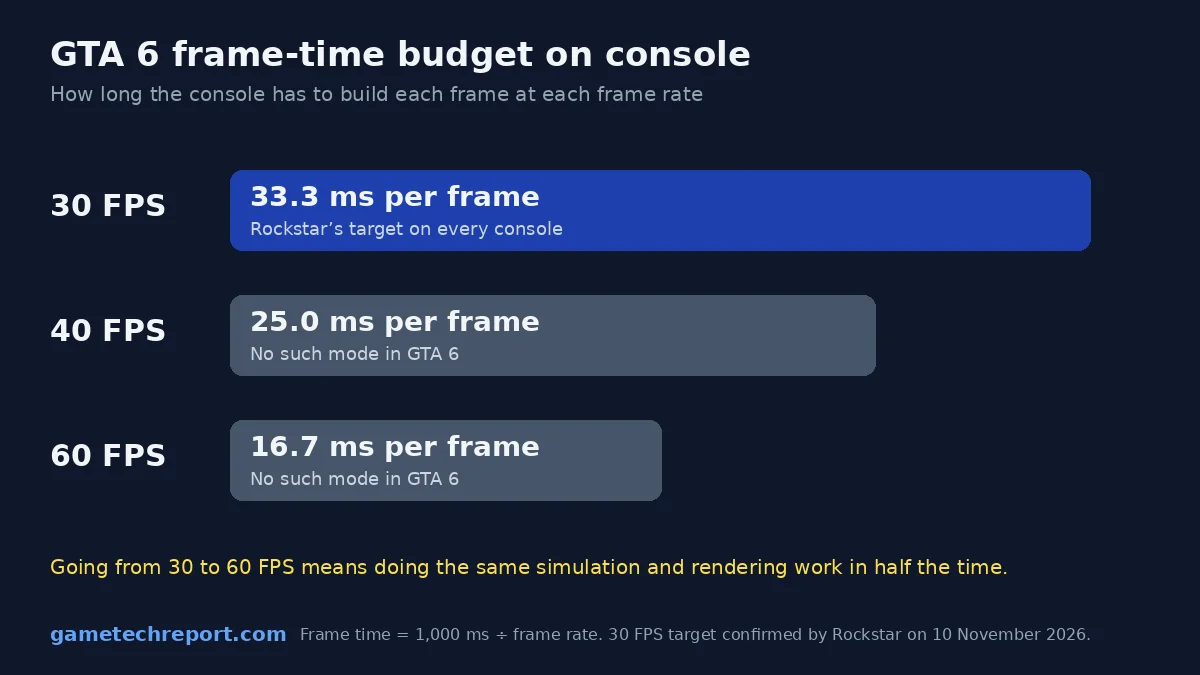
At 30 FPS the game has 33.3 ms to finish each frame, at 40 FPS 25 ms and at 60 FPS 16.7 ms. Digital Foundry says Rockstar balanced CPU and GPU work to fill each 33.3 ms frame, sees no way to free enough GPU and particularly CPU time for 60 FPS without cutting back the world, and notes that the PS5 Pro adds mostly GPU power and only a small CPU gain. Rockstar has ruled out 40 and 60 FPS modes on current consoles. Review scores and the full test notes are in our GTA 6 launch guide.
Native 30 FPS, generated 60 FPS and a 60 FPS stream are different things
Frame generation on a PC changes the motion you see and leaves the game itself untouched. The console still renders 30 frames a second, so the result looks smoother without gaining the responsiveness of native 60 FPS.
| What you see | What actually happens |
|---|---|
| Native 30 FPS on the TV | The console renders 30 real frames a second |
| 60 FPS with PC frame generation | Still 30 real frames, with one generated image between each pair |
| 60 FPS stream on Twitch or YouTube | Viewers get 60 FPS video, and the game runs exactly as before |
| TV motion smoothing | The TV interpolates the frames itself |
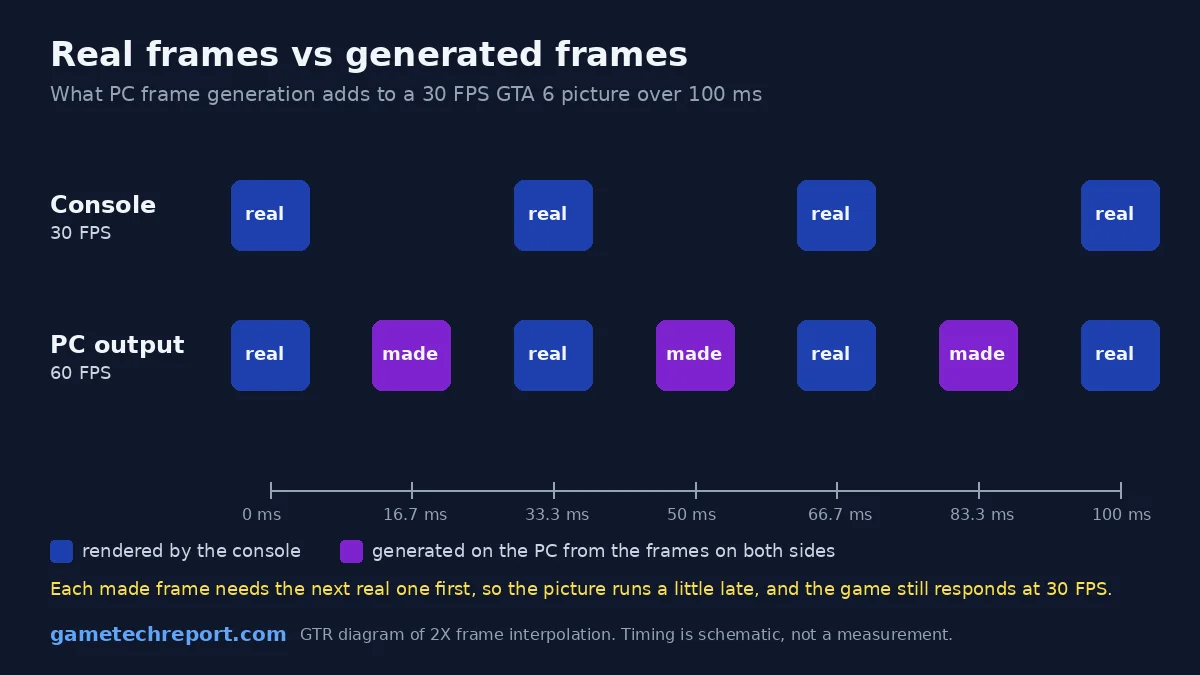
Generated frames cost time. Interpolation needs the next real frame before it can draw the image in between, so it adds buffering, and the total delay depends on the capture path, the interpolation method, the GPU load and the display. Veyra’s console guide quotes one community member’s example from his own setup, about 50 ms for a capture card and 15 to 20 ms for the app.
Those figures come from other setups and other games, so they are a reference point and cannot be added to other measurements. Digital Foundry separately measured about 180 ms of input latency in its GTA 6 tests on Xbox Series X, close to Red Dead Redemption 2, so the game already responds slowly before any PC route adds its share. Generated frames also struggle with fixed screen elements during fast camera turns, so the HUD and the rotating minimap can shimmer or smear. Frame generation built into PC games works with motion data from the game engine, while these tools only see the finished video, which is why they produce more artifacts and why none of this amounts to DLSS running inside GTA 6.
Settings that make 30 FPS look and feel better
GTA 6 has no graphics or performance modes, so the settings worth changing sit in the console menus, on the TV and on two in-game sliders.
- Motion blur. Motion Blur Strength sits under Settings > Display and starts at 3. It is a matter of taste: 1 or 2 sharpens fast camera turns while keeping a little blur to soften 30 FPS judder, and 0 removes it.
- Camera sensitivity. Digital Foundry found the camera sluggish and said a higher camera sensitivity helps. It changes how turning feels and leaves the system delay as it is.
- TV game mode. Game mode cuts the TV’s own processing delay, and ALLM can switch compatible TVs to it automatically when the console starts a game.
- VRR on Xbox Series X|S. In Digital Foundry’s testing, Xbox VRR copes with low frame rates best when the console outputs 120 Hz, and results also depend on the VRR range your TV supports. On a VRR TV, set Settings > General > TV & display options > Refresh rate to 120 Hz and tick Allow variable refresh rate under Video modes. Digital Foundry found that this smooths the Series X dips in heavy scenes. The TV needs HDMI 2.1 VRR at 120 Hz.
- VRR on PS5. Digital Foundry found that PS5 VRR works from 48 FPS up, with no low frame rate compensation below that, so it cannot smooth the dips of a game that targets 30 FPS.
- HDR. Calibrate on the console first (PS5: Settings > Screen and Video > Video Output > Adjust HDR; Xbox: Settings > General > TV & display options > Calibrate HDR for games), following your TV maker’s advice on tone mapping such as HGiG, then set Brightness Calibration in the game’s Display tab.
- TV motion smoothing. Samsung’s Game Motion Plus and similar modes interpolate frames on the TV with no PC at all, at the cost of extra delay. On Samsung sets it does not run together with FreeSync, and owners of some models report that it does little with 30 FPS games. It suits slow single-player play more than gunfights.
Remote Play and cloud play
Rockstar says GTA 6 fully supports Remote Play on PlayStation and Xbox, which streams the game from your own console to another screen, including the PlayStation Portal and the Xbox app on Windows. Xbox Cloud Gaming streams it at Series S settings to Xbox Series X|S and Xbox One consoles only. Remote Play is also the base of three frame generation routes below, because it puts the picture on a PC without a capture card.
Six ways to smoother 60 FPS video, compared
Five PC routes and one TV option can turn a 30 FPS console signal into smoother video, and GTR found no published end-to-end latency measurement with GTA 6 for any of them. The evidence column shows how much each one has been tested, and none of it is a GTA 6 test by an outlet.
| Route | What you need | Frame generation | Evidence so far |
|---|---|---|---|
| Capture card + Veyra | HDMI capture card, Windows 11 PC | AMD Optical Flow + XeSS 2X as the guide’s starting point, NVIDIA VFG on RTX 40 and RTX 50 | Community guide, GameGPU run with a PS5, a Spider-Man 2 comparison |
| Capture card + OBS + Lossless Scaling | HDMI capture card, Windows 10 or 11 | LSFG, fixed X2 | Android.com.pl test: smooth, too laggy for comfort |
| PS5 Remote Play + SmoovPlay | Windows 10 or 11 (64-bit), 8 GB RAM, RTX 30 to RTX 50 | RIFE, one to three extra frames | Developer figures: about 20 ms added at 60 FPS, 36 ms at 90 FPS |
| PS5 Remote Play + Veyra | Wired network, controller on USB | As with the capture card | Community guide |
| PS5 Remote Play + chiaki-ng + Lossless Scaling | Wired network, controller on USB | LSFG, fixed X2 | Android.com.pl’s preferred setup |
| TV motion smoothing | A TV with interpolation in game mode | TV processing | Mixed owner reports |
Android.com.pl tried two of these routes on 17 November 2026 with a 30 FPS racing game. It preferred Remote Play with Lossless Scaling and found its capture card route through OBS too laggy for comfortable play, while Veyra’s creator claims, without an independent measurement, that Veyra captures 10 to 20 ms faster than OBS. The GTA VI clip on SmoovPlay’s site is Rockstar trailer footage run through the tool as a simulated Remote Play stream, so it shows the look of the effect and says nothing about how the game responds.
On Xbox Series X|S, the capture card routes work the same way and need no HDCP change. Remote Play to a PC runs through the Xbox app, and SmoovPlay lists Xbox and capture cards as experimental.
Capture card and Veyra, step by step
Veyra is a free, open-source Windows 11 app that takes a capture card feed and adds generated frames on the PC’s graphics card. It is a third-party tool with no link to Sony or Rockstar, and its console guide is a community-compiled snapshot of user settings, so menu names can change between versions. Before buying anything, check the capture specification, because a card sold with 4K60 passthrough may still capture far less.
- Capture card. Look for real 1080p60 capture at minimum, 1440p60 or 4K60 for a sharper result, low-latency passthrough and a fast enough USB port. Some cheap cards capture 30 FPS and repeat frames, which leaves frame generation nothing to work with. The Elgato 4K X, for example, needs USB 3.2 Gen 2 (10 Gbps) and captures HDR only up to 4K30 or 1440p60, so its 4K60 capture is SDR.
- PC. Windows 11 and a recent graphics card. Veyra’s console guide uses AMD Optical Flow with XeSS 2X as its starting point for 30 FPS PS5 games, while NVIDIA’s Video Frame Generation mode needs a GeForce RTX 40 or RTX 50 card and took 1 to 2 ms per frame on an RTX 4060 Ti in GameGPU’s run.
- Screen. A monitor or TV connected to the PC. The guide suggests 120 Hz to avoid tearing after frame generation.
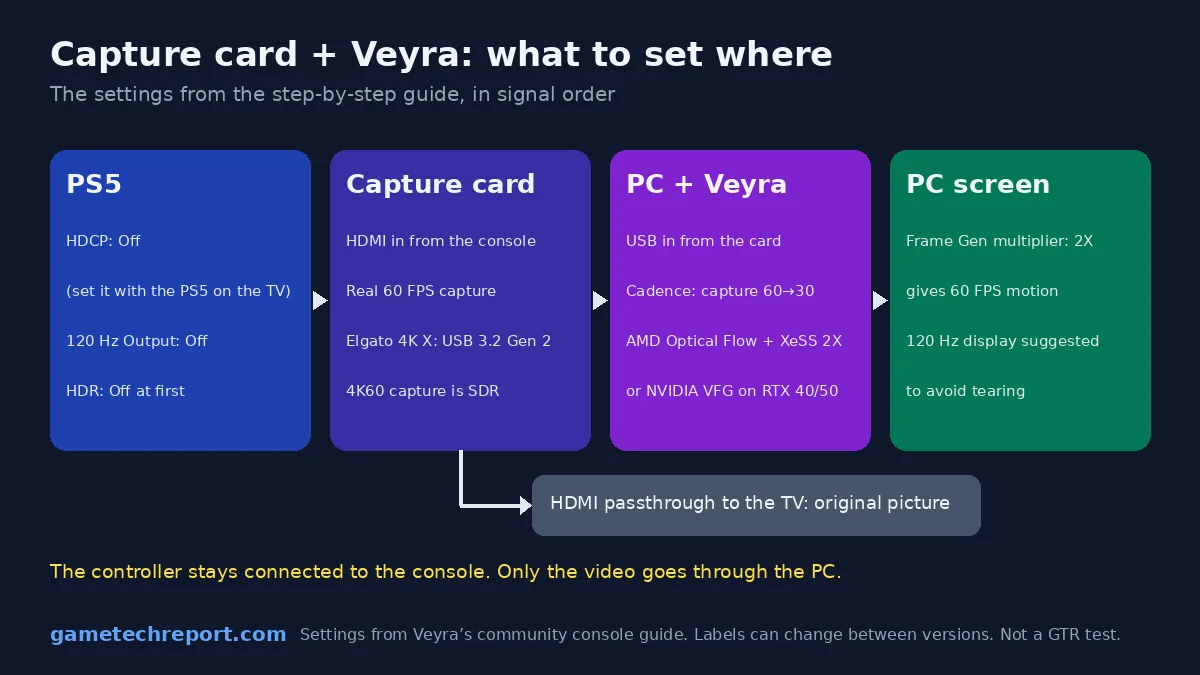
- Connect the PS5 straight to the TV, open Settings > System > HDMI and turn off Enable HDCP. With HDCP on, the capture card shows a black screen, and with it off, Netflix and other video apps will not play until you turn it back on.
- In Settings > Screen and Video > Video Output, set 120 Hz Output to Off and HDR to Off. Veyra’s guide asks for a fixed 60 Hz signal, and SDR keeps the first setup simple.
- Run an HDMI cable from the console to the card’s HDMI input and connect the card to the PC by USB. For a backup picture, connect the card’s HDMI output to the TV. That passthrough keeps the console’s original image without PC-generated frames.
- Download Veyra only from the Releases section of its GitHub page, extract it and open veyra_qml_ui.
- On the home screen choose Capture Card, pick your card under Video Input Device, then click Connect and Start.
- Capture the 60 Hz signal (1080p60 works, 1440p60 or 4K60 look sharper) and set the content cadence to capture 60→30. The HDMI signal runs at 60 Hz while GTA 6 renders 30 frames, so every second captured frame is a copy, and this setting drops the copies before new frames are generated. Capturing at 30 FPS roughly doubles the capture delay, according to Veyra’s creator.
- In the motion settings, start with AMD Optical Flow and XeSS 2X, or NVIDIA Video Frame Generation on an RTX 40 or RTX 50 card. Open Pro Mode at the top of the screen and keep the Frame Gen multiplier at 2X for 60 FPS. Higher multipliers need a 120 Hz display.
- Check the result by panning the camera slowly next to the passthrough picture on the TV. If both move the same way, the card is capturing at 30 FPS or the cadence setting is wrong.
- Play on the PC screen. The controller stays connected to the console as usual.
OBS and Lossless Scaling, step by step
Lossless Scaling costs $6.99 on Steam in the US and generates frames for windowed and borderless apps, so it can work on an OBS window that shows the capture card. This is a community workflow tested with other games, and Leonida Interactive’s guide puts the GPU at around an RTX 3060 or RX 6600 for 2X to 4X.
- Do steps 1 to 3 from the Veyra guide above (HDCP off, 60 Hz SDR output, cables).
- Install OBS Studio, add a Video Capture Device source with your card and set its resolution manually instead of leaving it on Auto.
- Right-click the source and open a windowed projector. That window is your game feed. If the generated motion stutters, try setting OBS to 30 FPS under Settings > Video > Common FPS Values, so the preview stops repeating each real frame.
- In Lossless Scaling, choose LSFG as the frame generation type, set a fixed X2 multiplier and pick your graphics card. Keep the monitor at 60 Hz for 60 FPS.
- Click the projector window, then press Scale in Lossless Scaling (or its hotkey) to run it full screen with generated frames.
Android.com.pl found that recording in OBS at the same time made the delay worse, so on this route OBS should only show the picture. Treat this route as the fallback for PCs that cannot run Veyra.
PS5 Remote Play and SmoovPlay, step by step
SmoovPlay is a free, open-source Windows app built around chiaki-ng, the open-source Remote Play client, and PS5 Remote Play is the input its developer has tested. Like Veyra, it is a third-party tool, and it is still in early versions (0.3.0 on its Releases page at the time of writing). It needs Windows 10 or 11 (64-bit) and 8 GB of RAM and supports GeForce RTX 30, RTX 40 and RTX 50 cards, while AMD and Intel cards are experimental.
- On the PS5, open Settings > System > Remote Play and turn on Enable Remote Play. To wake the console from rest mode, also tick Stay Connected to the Internet and Enable Turning On PS5 from Network under Settings > System > Power Saving > Features Available in Rest Mode.
- Connect the PS5 and the PC by Ethernet, or use 5 GHz Wi-Fi. Sony recommends at least 15 Mbps up and down for the best Remote Play quality.
- Download SmoovPlay-Setup.exe only from the project’s Releases page and compare it in PowerShell with Get-FileHash .\SmoovPlay-Setup.exe against the SHA-256 listed there. A matching hash shows you have the file the developer published, which is different from proof that it is safe. The installer is not code-signed yet, so Windows SmartScreen warns about it, and whether to install unsigned software is your call.
- Run the setup. It checks the graphics card and display and downloads the AI runtime.
- Sign in to PSN inside chiaki-ng and register the PS5, a one-time step.
- Press Play. The screen’s refresh rate sets the output, so a 60 Hz screen gets 60 FPS, a 90 Hz screen 90 FPS and a 120 Hz screen up to 120 FPS.
- Press L to measure the delay on your own setup.
The developer puts the processing delay at about 20 ms at 60 FPS and 36 ms at 90 FPS, which leaves out Remote Play’s own delay, and both figures come from the developer. The stream itself stays at 1080p, so the PC upscales it, and it can blur in fast motion on a weak connection.
Remote Play with Veyra or with chiaki-ng and Lossless Scaling
Veyra has a PS5 Streaming mode, and the same Remote Play stream also works with chiaki-ng and Lossless Scaling, the setup Android.com.pl preferred. Both are community setups for PS5 only, and the steps below follow published user guides, so check the labels in your version. Do steps 1 and 2 of the SmoovPlay guide first, and connect the DualSense to the PC with a USB cable, which Sony requires for Remote Play on PC.
- In Veyra, choose PS5 Streaming and enter the PS5’s IP address (on the console, Settings > Network > Connection Status > View Connection Status). Add your PSN account the way Veyra’s own guide describes, and avoid third-party websites that ask for PSN details.
- On the PS5, open Settings > System > Remote Play > Link Device to get an 8-digit code, enter it in Veyra, click Pair and Save, then Connect. The code expires within a few minutes.
- Set the stream to 1080p at 60 FPS, open Pro Mode and keep the Frame Gen multiplier at 2X.
For the chiaki-ng route, sign in to PSN inside chiaki-ng, register the PS5 with the Link Device code, start the stream in a window, then run Lossless Scaling on it with LSFG in a fixed X2 mode, as in the OBS guide above.
Streaming GTA 6 at 60 FPS while you play at 30
A capture card lets viewers watch GTA 6 at 60 FPS while the player stays on the console’s direct picture, which is the better choice for streamers who do not want the extra delay in their own hands.
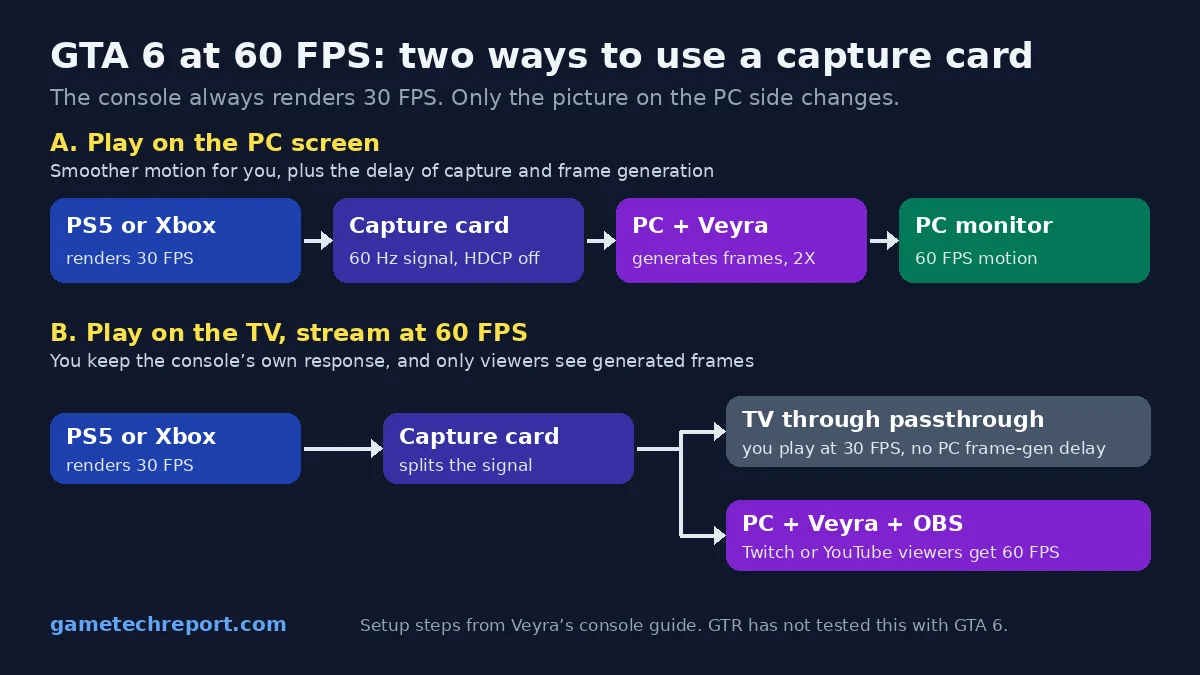
- Connect the card’s HDMI output to the TV and play there, on the console’s original picture.
- Run Veyra on the capture feed as in the capture card guide above. Only the viewers see its generated frames.
- In OBS, capture Veyra’s output with a Game Capture source. Veyra’s guide lists window capture of the app as a known limitation.
- Set OBS to 60 FPS under Settings > Video > Common FPS Values.
Without Veyra in the chain, a standard capture of GTA 6 still produces a 60 FPS stream in which every second frame repeats the one before it.
Fixes for common problems
- Black screen in Veyra or OBS. HDCP is on. Turn it off with the PS5 connected straight to the TV, then reconnect the capture card.
- Netflix or other video apps stop working on the PS5. HDCP is off. Turn it back on when you watch video.
- Motion stutters after frame generation. Capture at 60 FPS with the 60→30 cadence, keep the multiplier at 2X and check that the card is not capturing at 30 FPS.
- Tearing on the PC screen. A 120 Hz display avoids most of it, according to Veyra’s guide.
- Washed-out colors. The console is sending HDR to an SDR capture. Turn HDR off on the console or set the capture input to HDR.
- No background music. Switch the console audio output to PCM. Veyra’s guide says Dolby bitstream output can drop the music.
- Shimmer around the HUD and minimap. Frame generation causes it, and it is no sign of a setup error.
- Controller not responding over Remote Play. Connect the DualSense to the PC with a USB cable.
- Unsigned installer warning. Download only from the official GitHub Releases pages and compare the SHA-256 before running anything. Never enter PSN details on third-party websites.